Connect the analyzer
- Power the analyzer and connect it to a phone that supports USB host/OTG using an adapter and a USB cable that carries data.
- Open RF Survey Companion's Device tab and tap Refresh USB devices if the analyzer is not listed.
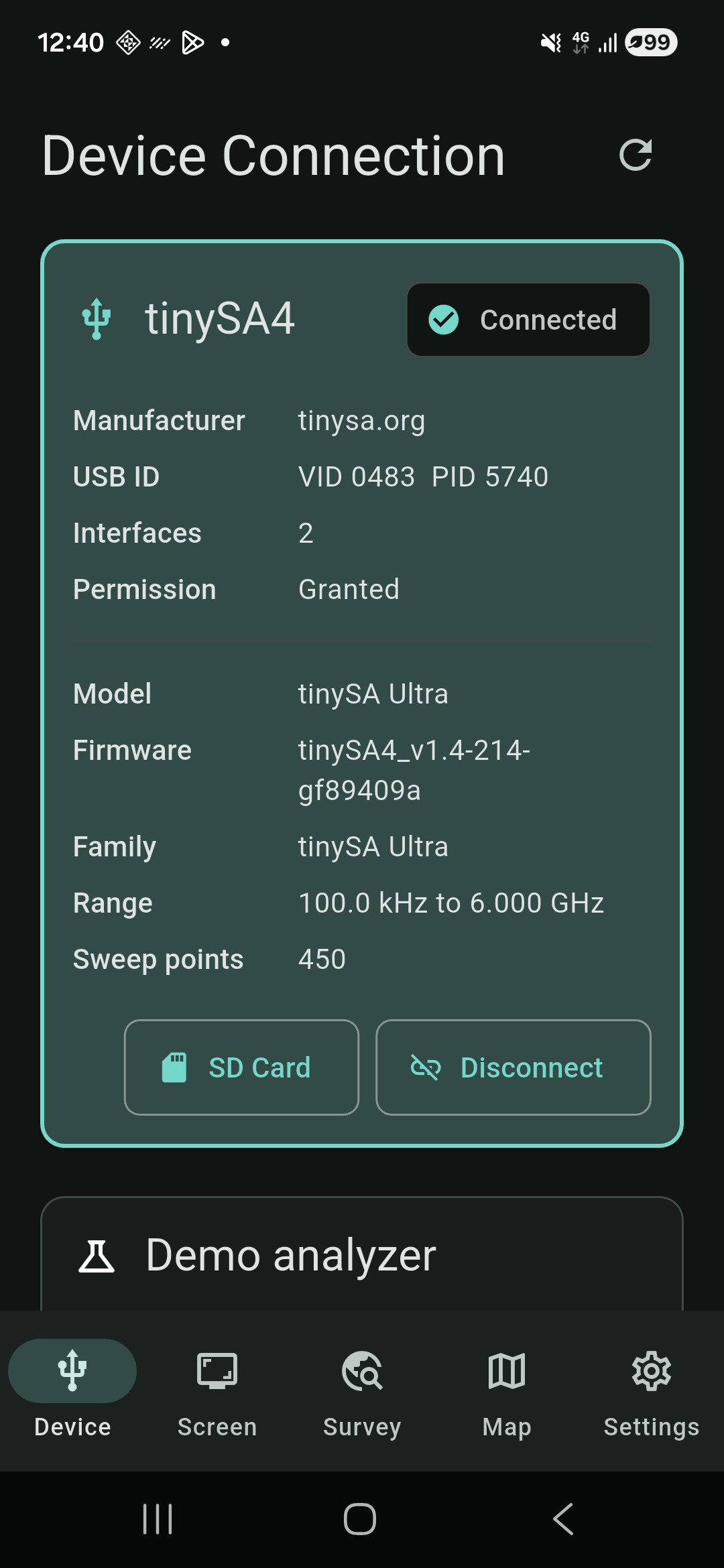
- Tap Connect on the analyzer's device card. If Android asks for USB access, approve the prompt. The app then reads the analyzer's model, firmware, and supported commands.
Android's USB host documentation explains why the phone must support host mode and why an app needs permission to communicate with a selected device.
If no USB device appears
- Check that the analyzer is powered, its USB connector is fully seated, and the phone's adapter supports USB OTG/host operation.
- Try a known data-capable cable and a direct connection without a hub. A charging-only cable cannot carry the USB data the app needs.
- Disconnect and reconnect the analyzer, then tap Refresh USB devices again. If Android still reports no device, discovery has failed before the app can talk to the analyzer.
If the device appears but Connect fails
Check the exact message on the Device screen. If USB permission was denied, reconnect and retry Connect, then approve Android's permission prompt. If permission succeeds but identification fails, try a stable cable and a fully powered analyzer. Device model, firmware, and USB serial behavior can affect compatibility; being visible to Android does not by itself prove that analyzer commands will work.
If a collection is interrupted by a cable disconnect, reconnect the same analyzer and follow the app's reconnect status. A paused collection is preserved while the app waits for a valid connection. Avoid starting a new collection until the existing session is resolved.
When you need support
Record the analyzer model, firmware version, Android version, and the exact error message. In Settings → Report a problem, you can review a local diagnostic report and choose whether to share it. Reports are not sent automatically. Send the relevant details to Capt. Fluffyface Labs if the problem continues.
Demo mode: the optional demo analyzer lets you explore the app without USB hardware. A successful demo connection does not verify phone, cable, or tinySA compatibility.
Get RF Survey Companion on Google Play to connect and inspect a compatible tinySA on Android.